Kuvarssoft Backup & Restore — every feature, with screenshots.
The guide below walks through every Free and Pro feature — backup, cloud providers, schedules, migration, URL replace, logs and notifications — with real screenshots from the plugin.
01. Backup & Restore
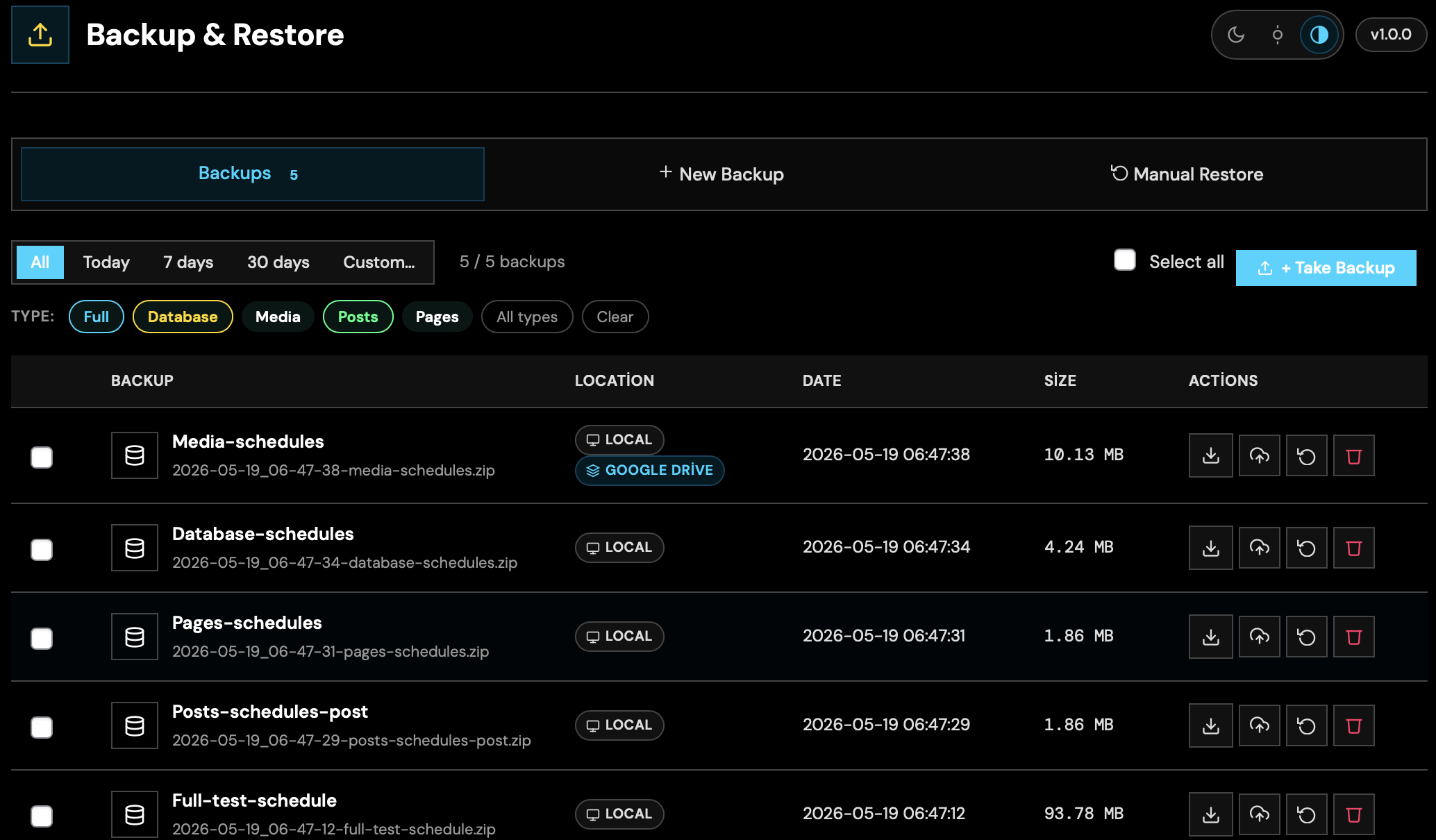
Back up your entire site (database + wp-content) in one click. Download the ZIP locally or send it to the cloud. To restore, upload a ZIP — the plugin validates it, restores the files and produces a detailed restore report.
- 1. Create a New BackupClick “New Backup”. The plugin builds a single compressed ZIP from the database dump and wp-content. Backup Lock prevents a second concurrent backup during the run.
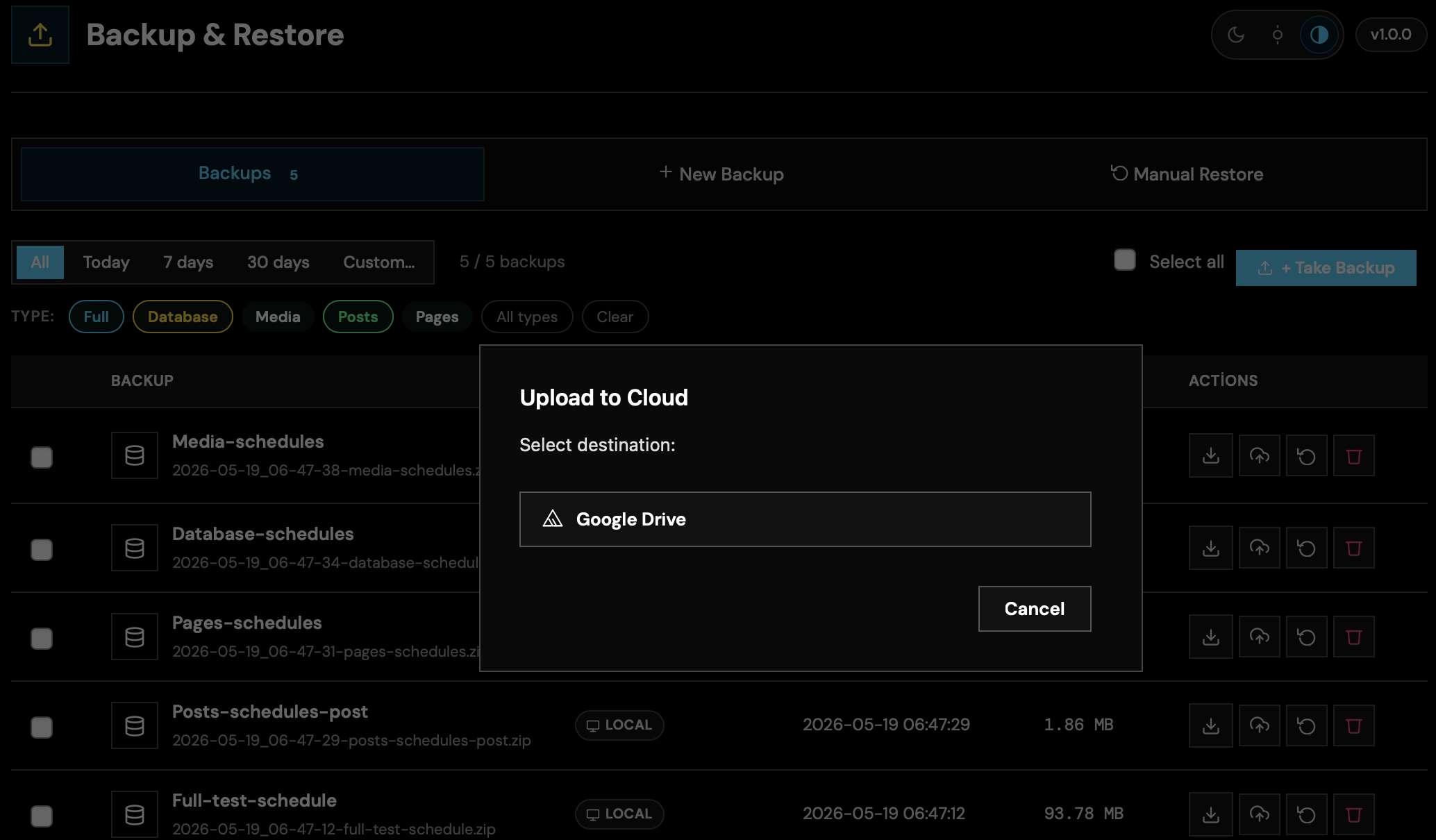
- 2. Download or Push to CloudOnce complete, download from the row or click “Upload to Cloud” to send the archive to your configured provider (Google Drive, S3, R2).
- 3. RestoreUpload the ZIP → the plugin validates contents → database + files are restored → a detailed report is generated under Restore Reports.
02. Cloud Backups
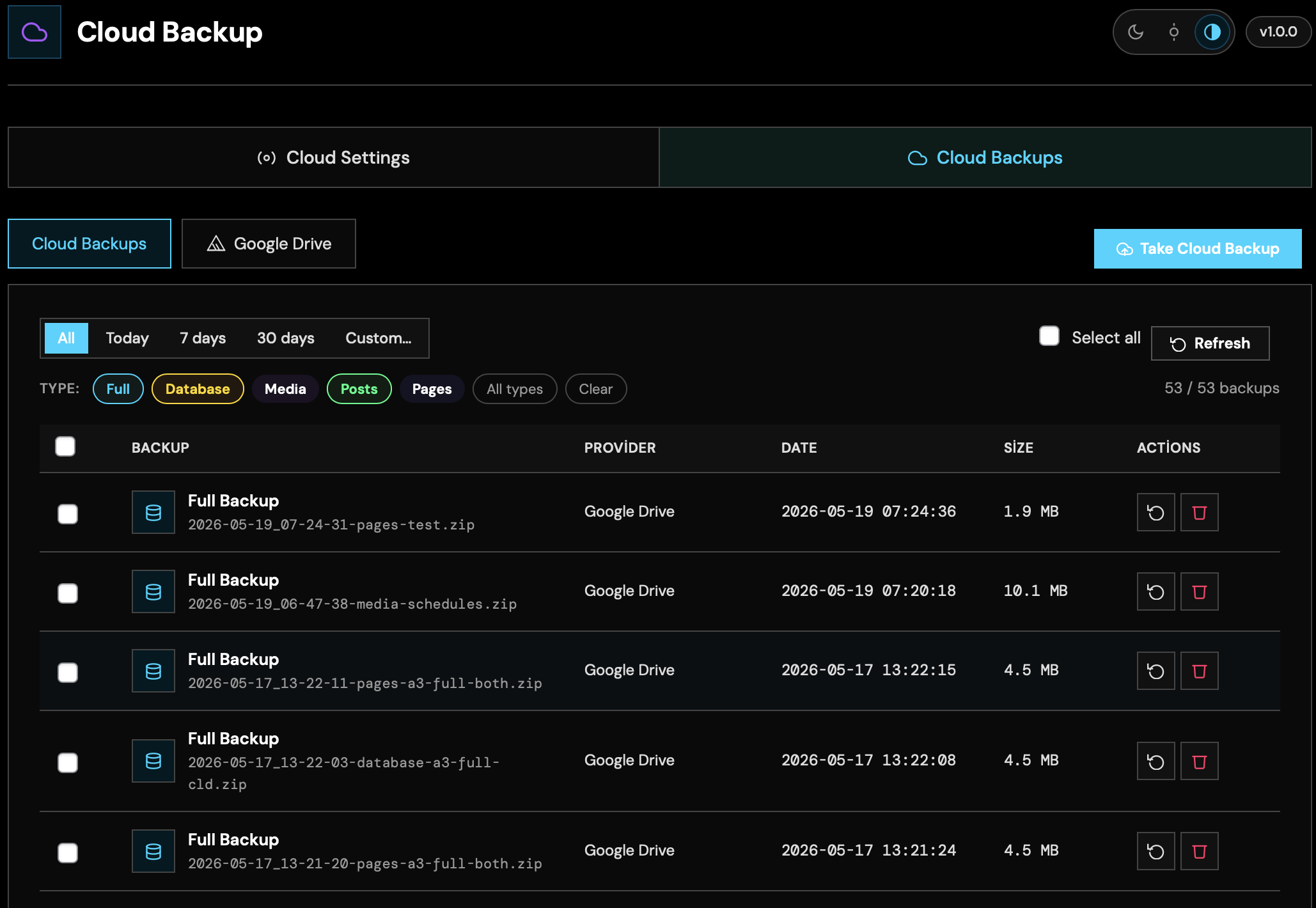
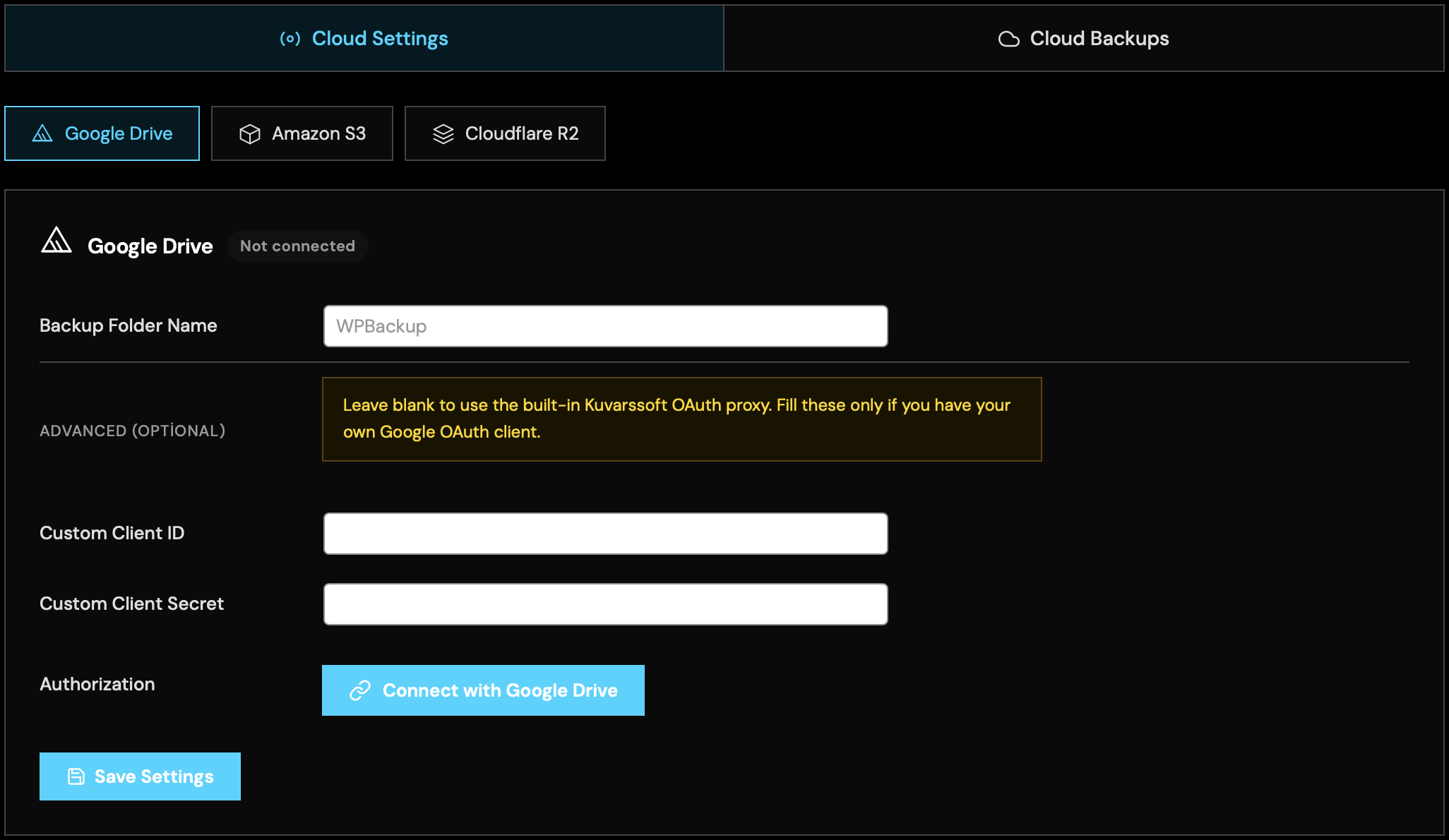
PROCloud provider layer supporting Google Drive, Amazon S3 and Cloudflare R2. Configure each provider independently, pick a folder/bucket, and run a connection test. After selecting a provider, the “Pull from Cloud” flow becomes available across all backups.
- 1. Provider SettingsUnder Cloud Backup → Settings, connect Google Drive via OAuth, or enter Access Key / Secret / Bucket / Region for S3/R2. Each provider has a “Test Connection” button.
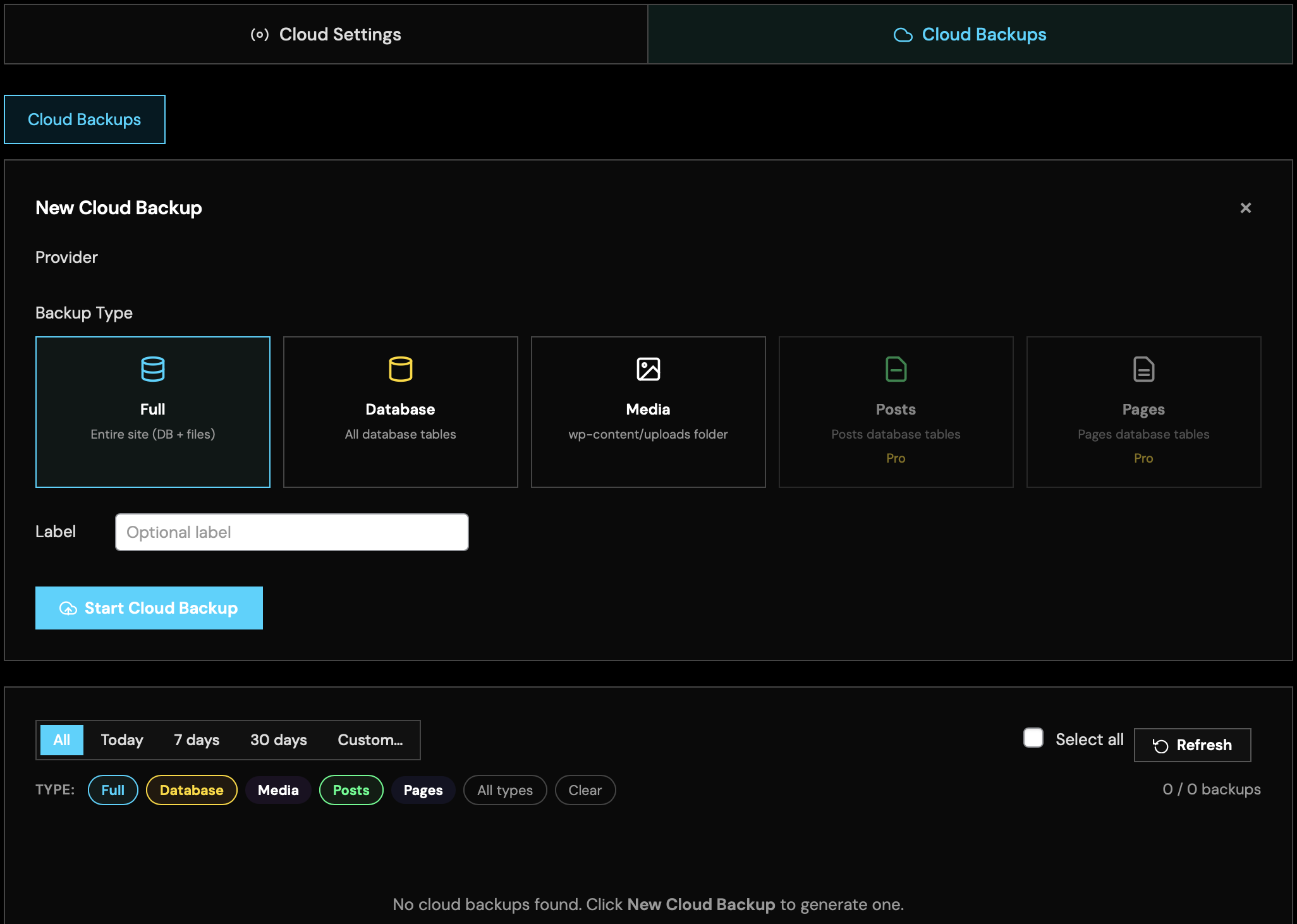
- 2. Take & Push BackupFrom the Cloud Backup screen, take a backup and push it directly to a provider. Progress is reported in real-time.
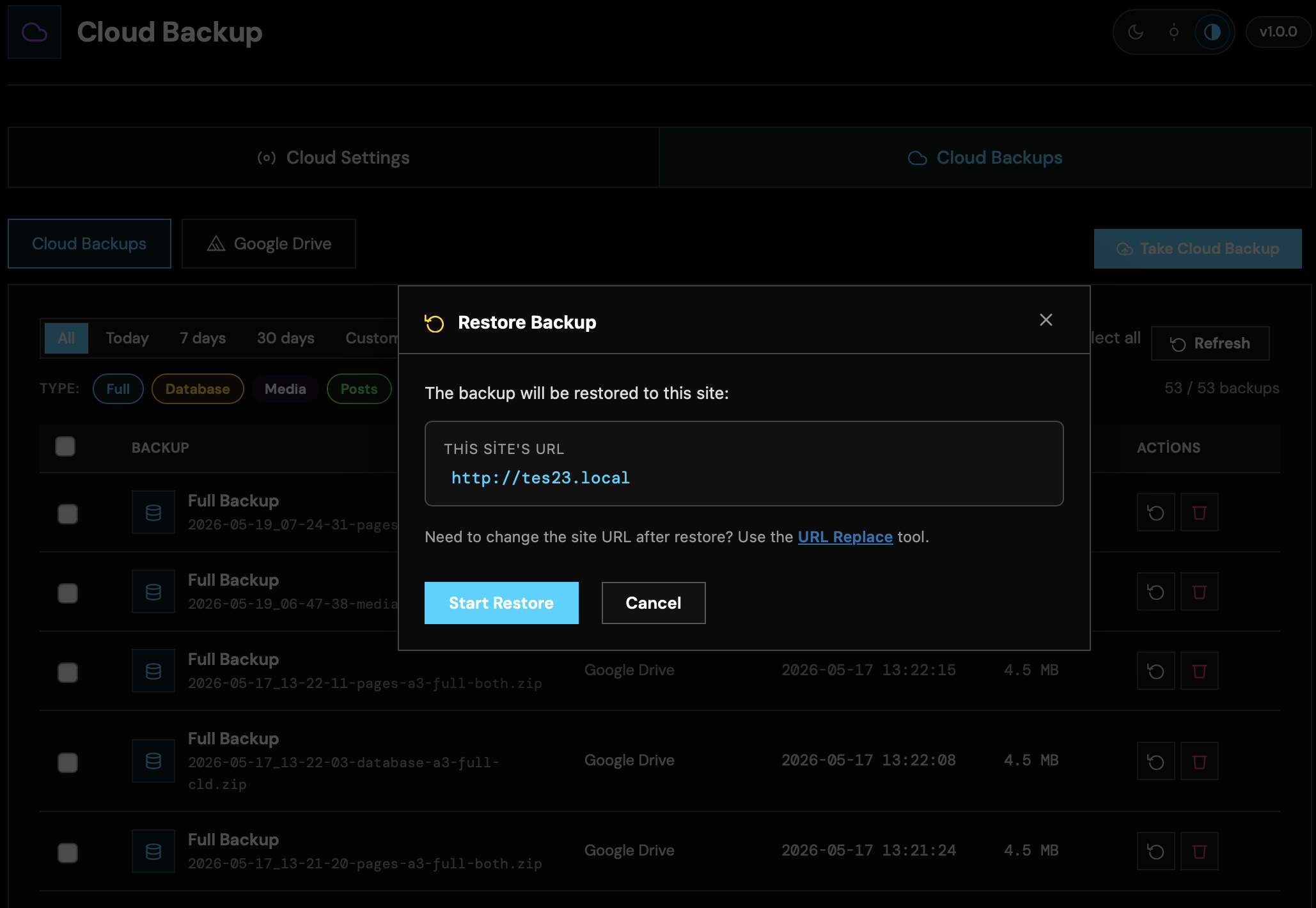
- 3. Restore From CloudList archives on the provider, select one and run the download + restore flow from a single screen.
03. Scheduled Backups
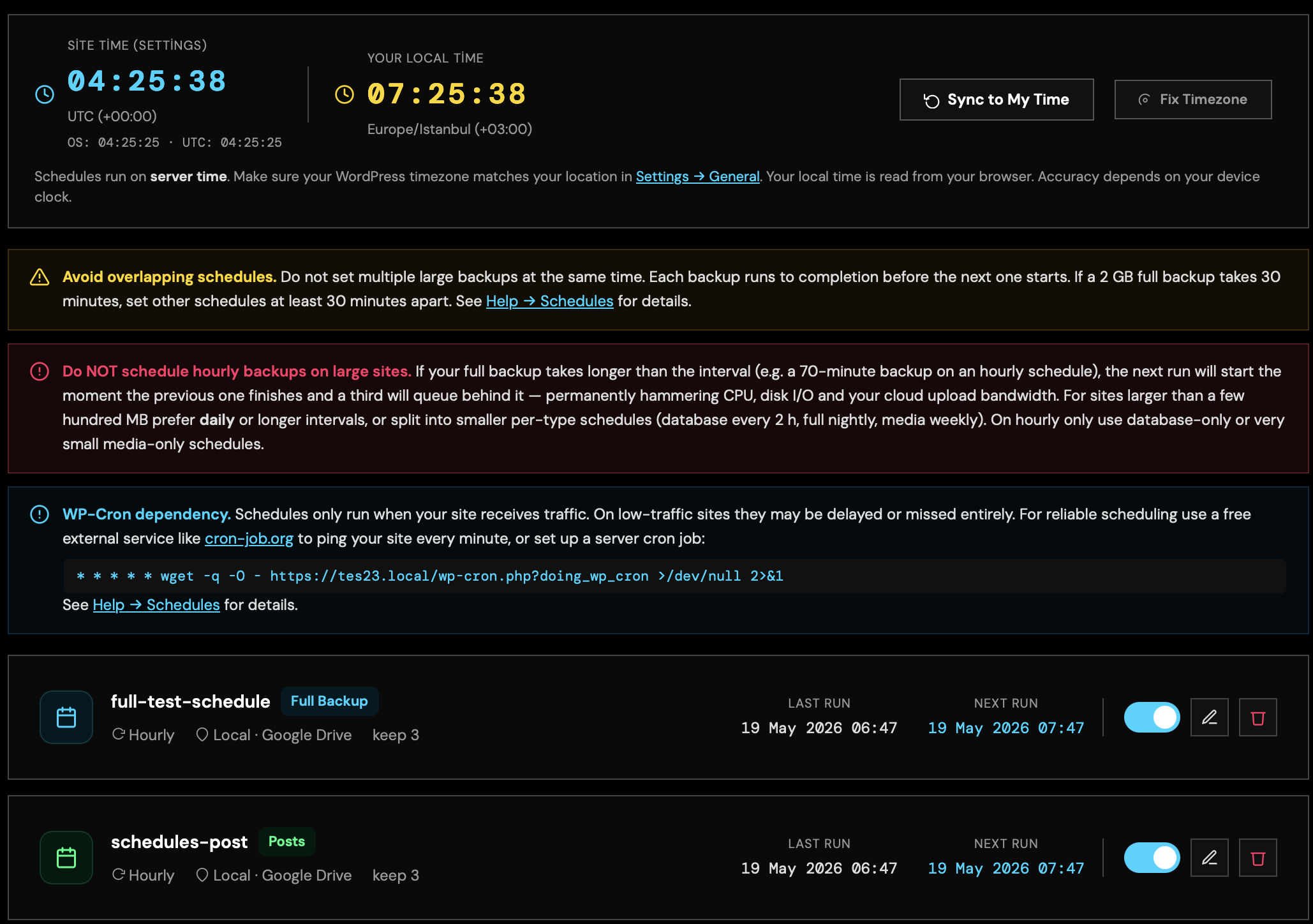
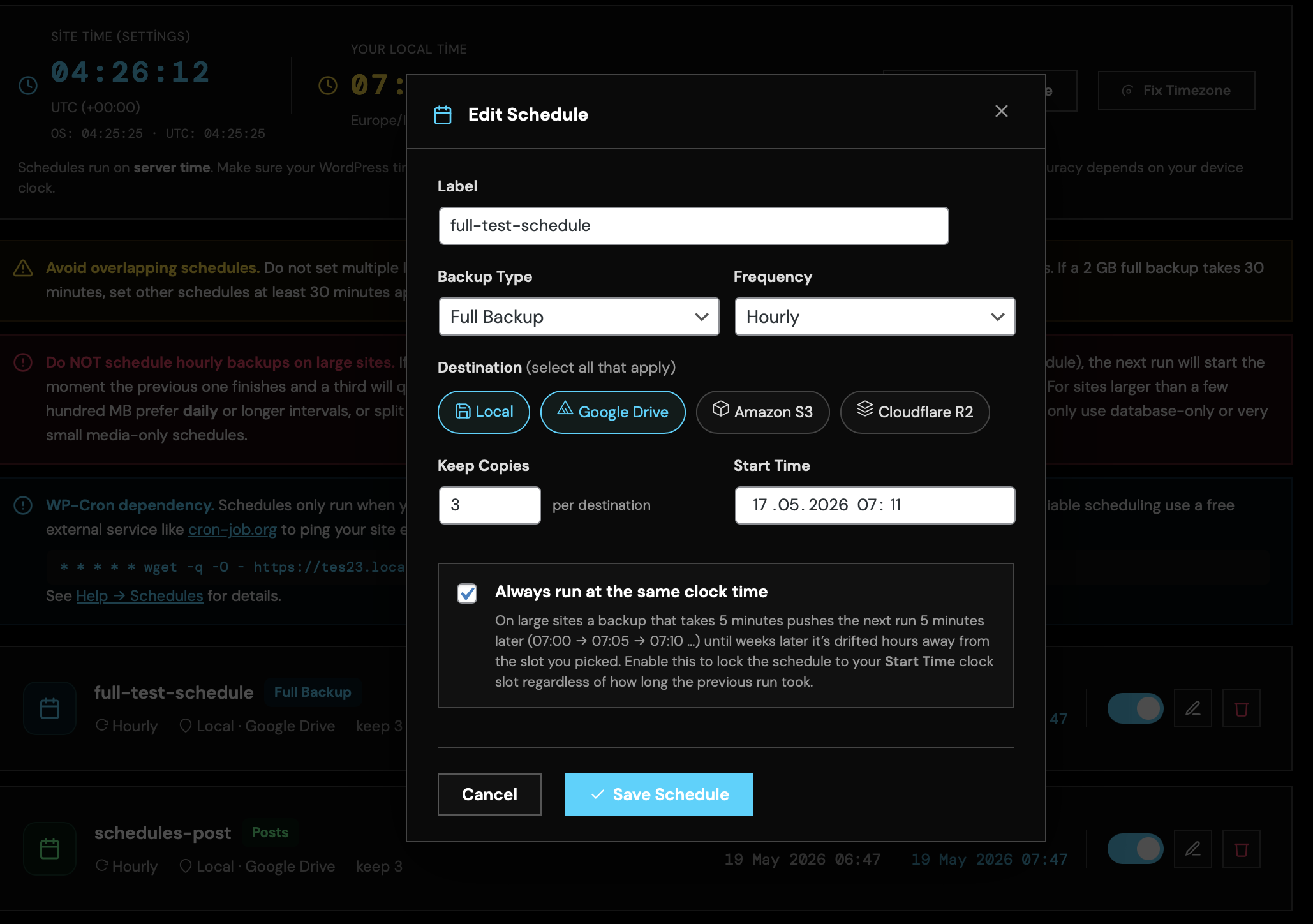
PROWP-Cron based hourly, daily, weekly or monthly automatic backup schedules. Each schedule can have its own destination (local, Drive, S3, R2), retention window, and scope (DB only, files only, full).
- 1. Create a ScheduleSchedules → “New Schedule”. Choose the cadence, start time, destination provider and how many archives to retain.
- 2. Edit a ScheduleEdit any schedule to change cadence or destination, or pause it temporarily. The next run time is shown on the schedule row.
04. Site Migration
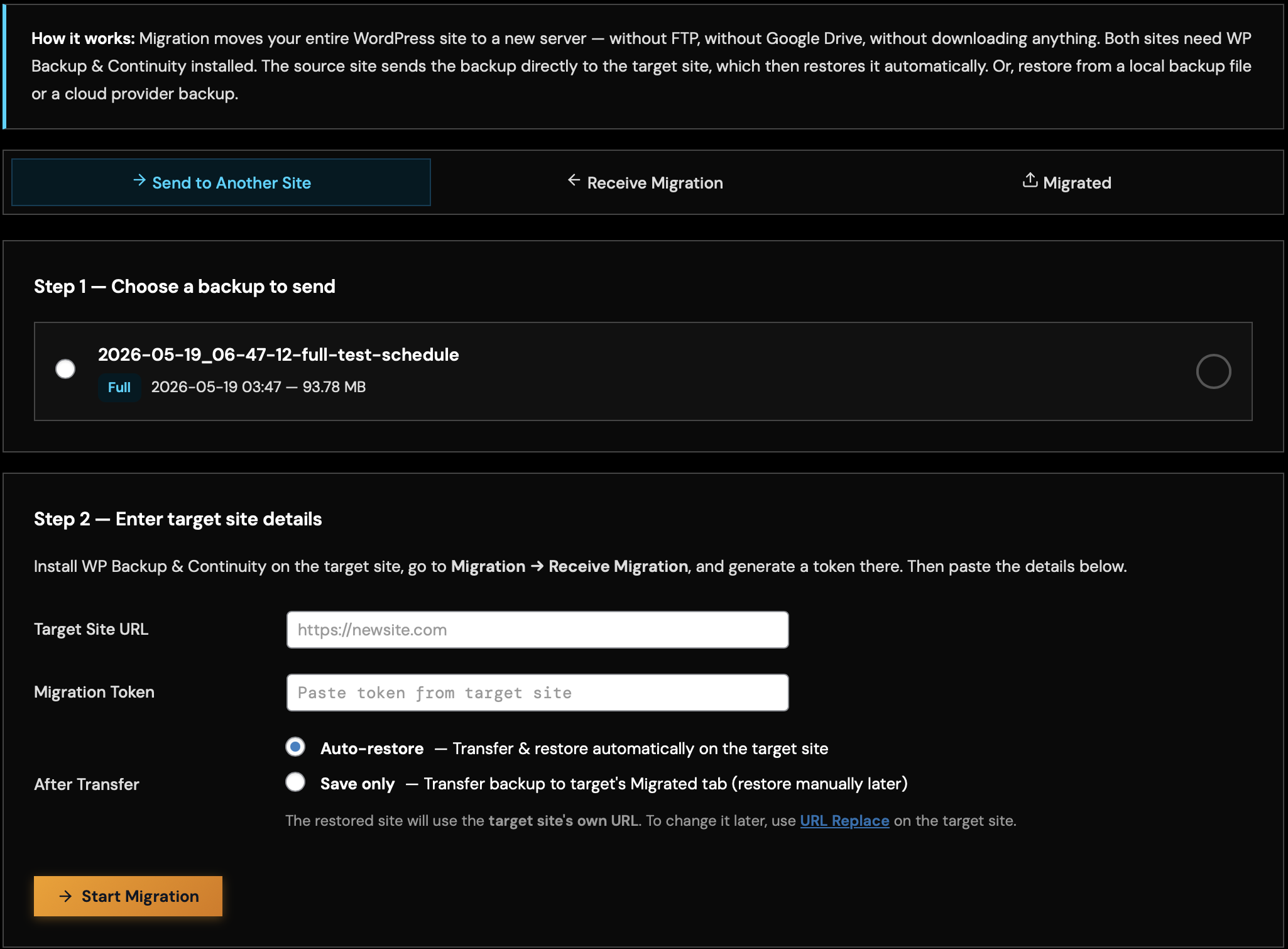
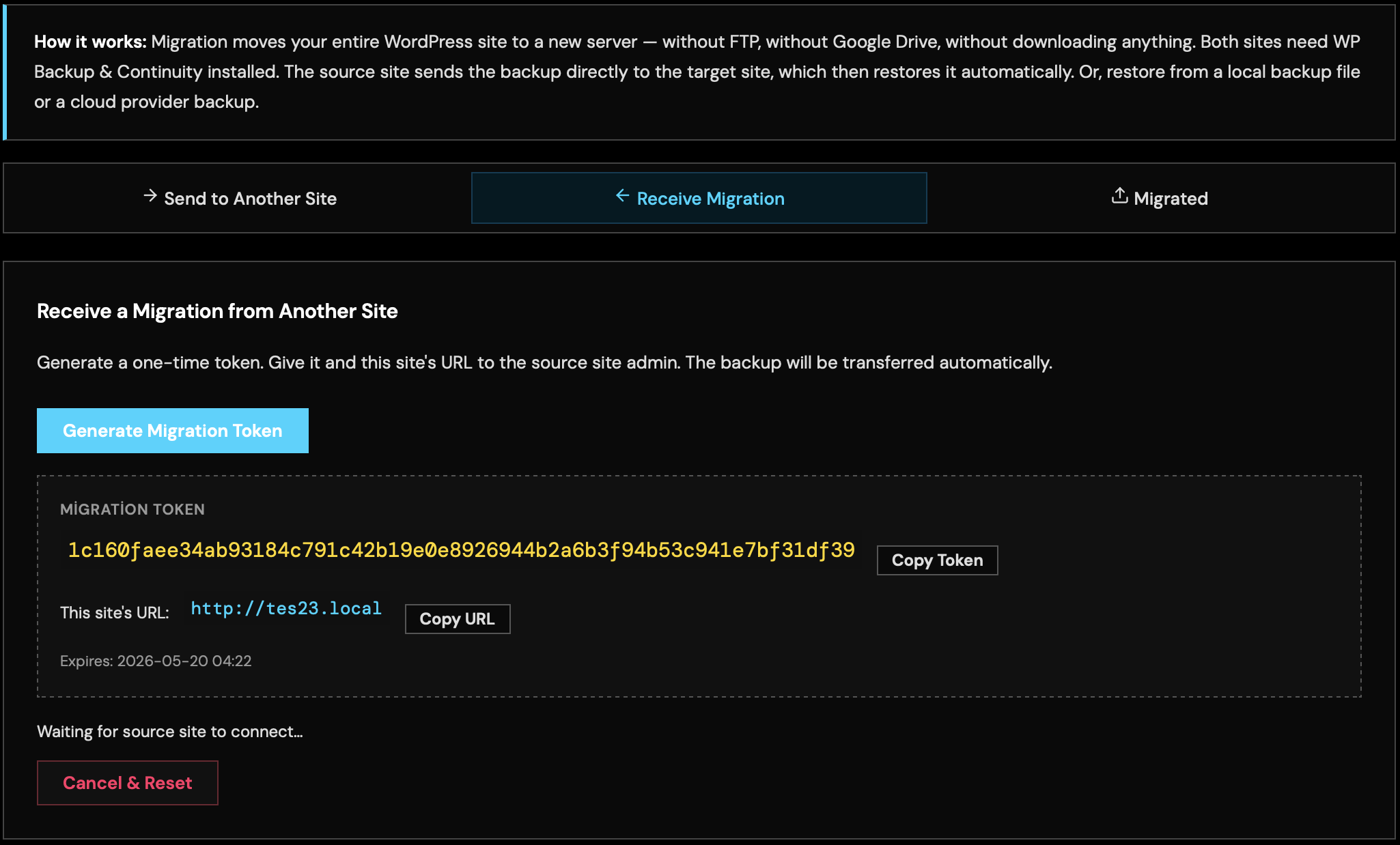
PROToken-based site-to-site transfer between two WordPress installs — no FTP or cPanel needed. “Send” on the source, “Receive” on the destination → the plugin orchestrates the transfer and finalizes with URL Replace for the new domain.
- 1. Generate Token on DestinationOn the destination site, open Migration → “Receive” and generate a one-time transfer token.
- 2. Send From SourceOn the source site, paste the destination URL + token in Migration → “Send”. The transfer starts; progress is streamed live.
05. URL Replace
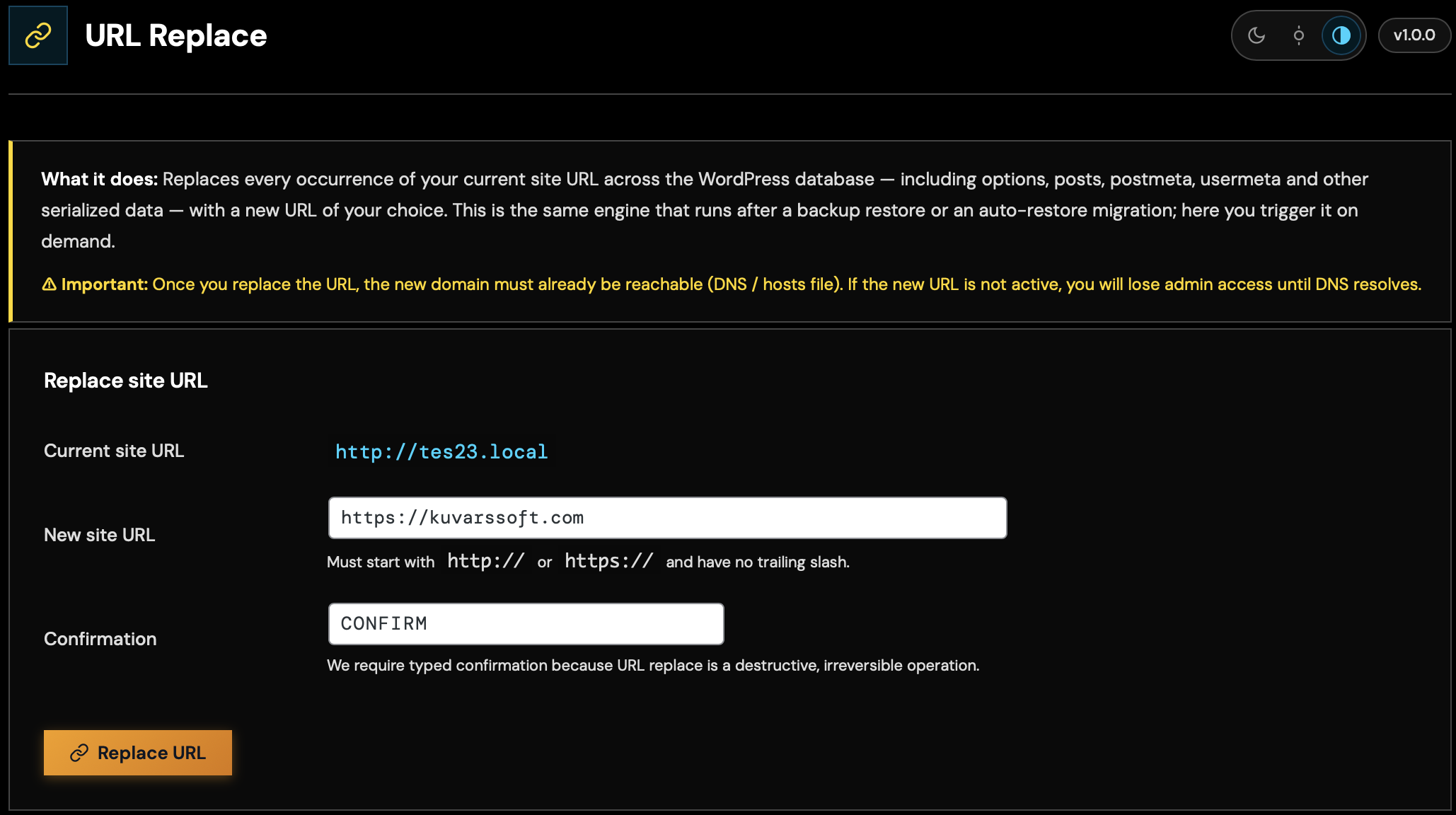
PROA serialize-safe URL replacement tool you can use after a migration or standalone. Safely updates every table for old → new domain, including https/http and www/non-www variants, and handles PHP serialized data correctly.
- Enter Old / New URLsEnter the old and new URLs, preview affected rows via “Dry-run”, then execute. Results are written to the log.
06. Logs
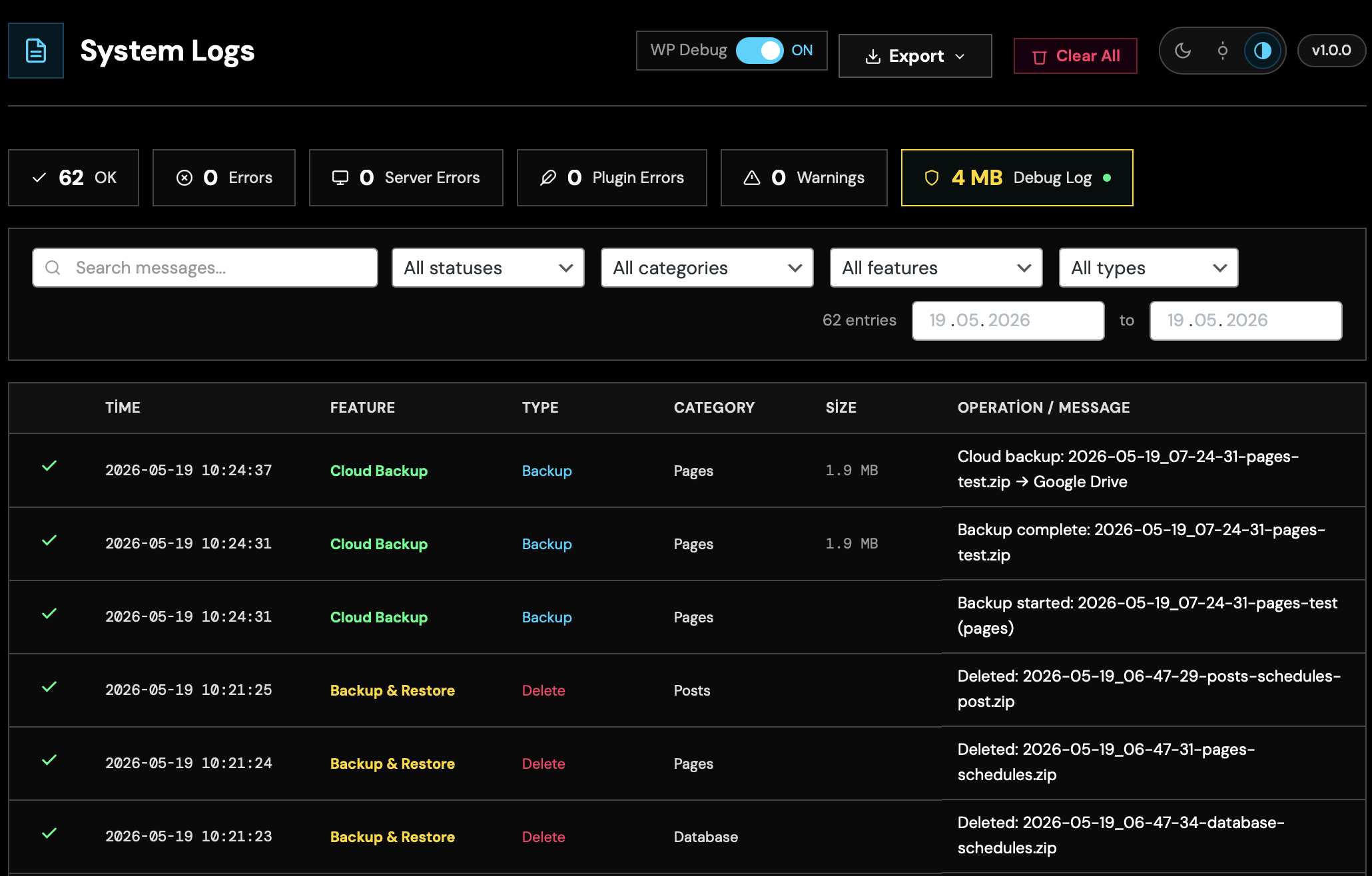
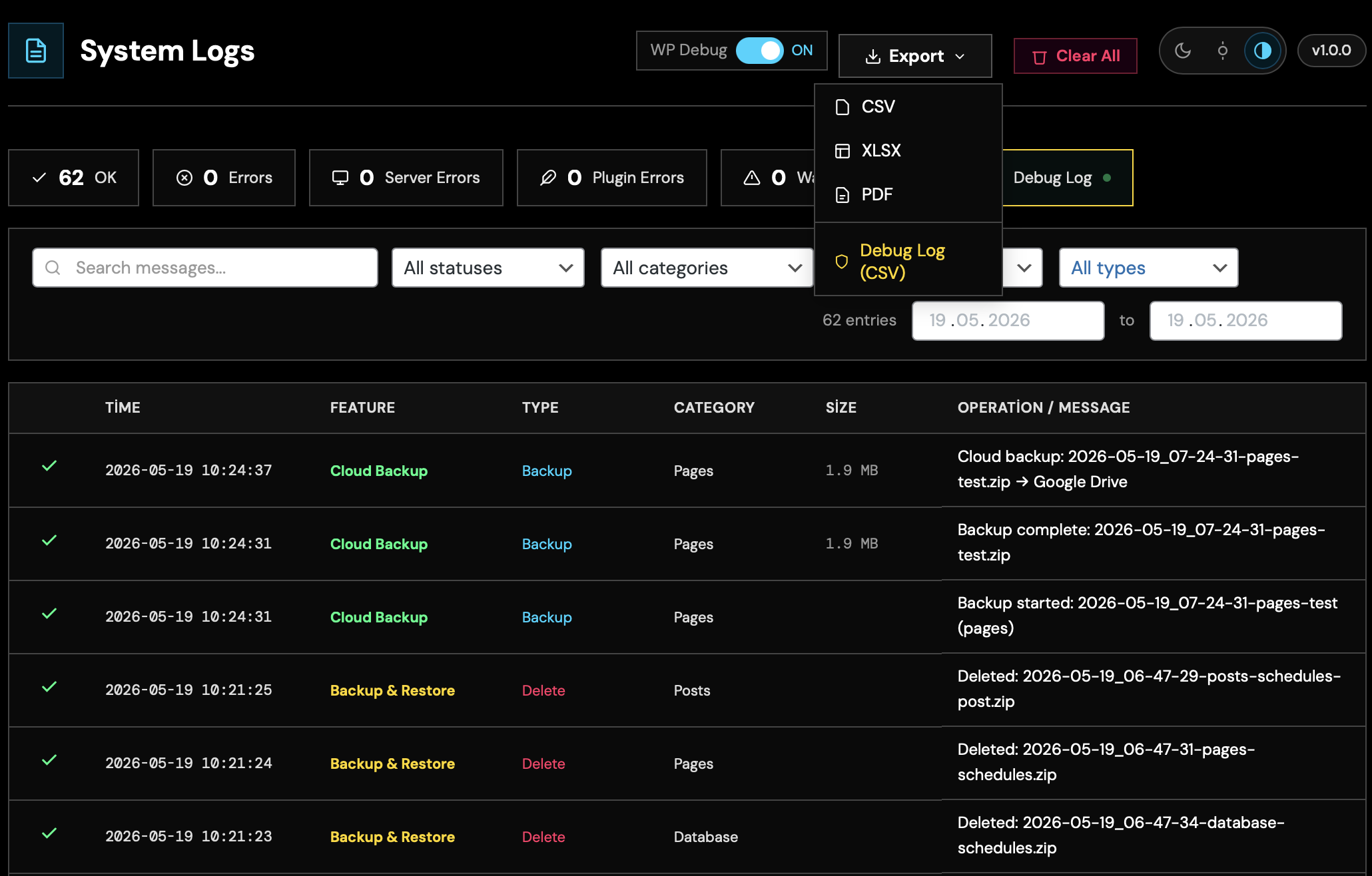
PROEvery operation (backup, restore, cloud transfer, schedule, URL replace, system) is timestamped and leveled (OK / Warning / Error). Includes verbose debug log + system log + PDF export.
- System LogsSee PHP version, memory limit, plugin version, environment diagnostics — all on one screen.
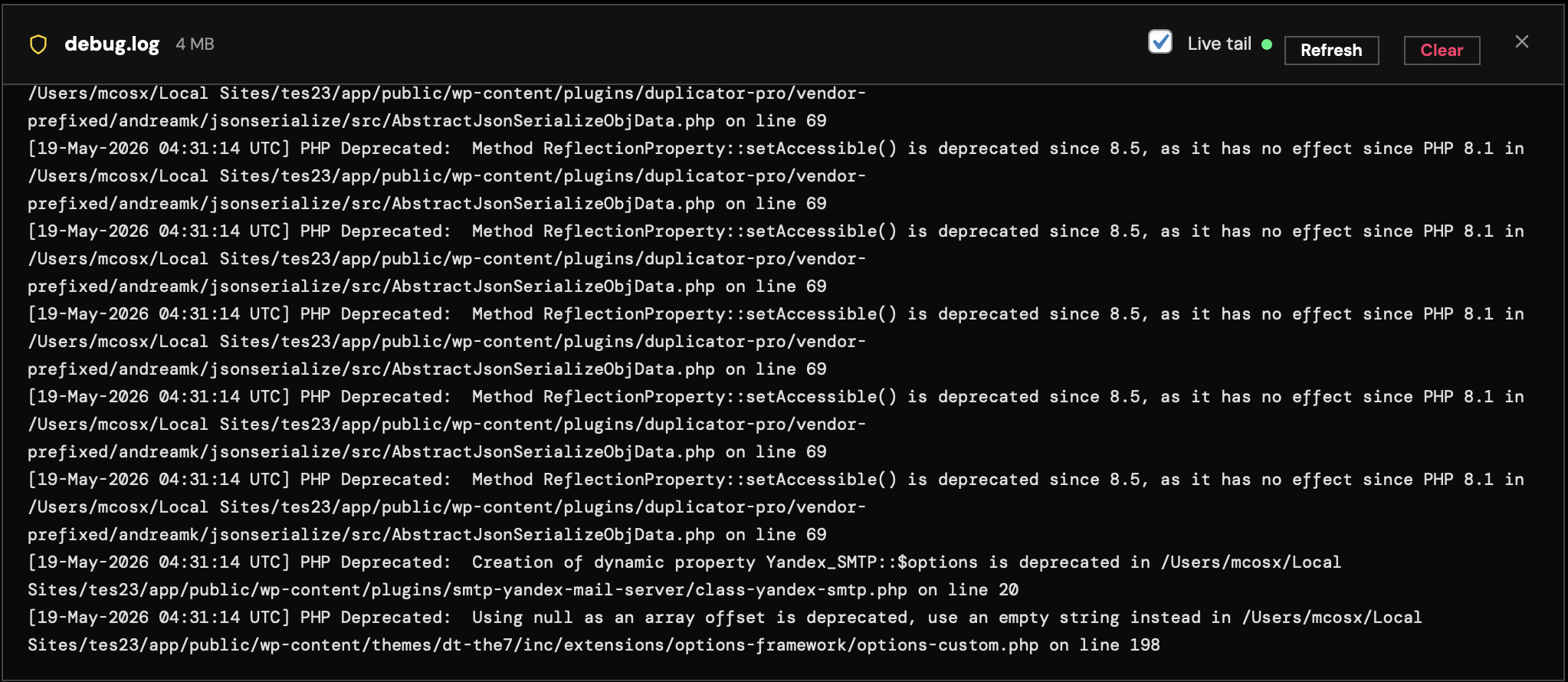
- Debug LogEnable the debug log when troubleshooting; detailed traces are easy to share with our support team.
- PDF / CSV ExportExport the operation log as PDF or CSV — handy for archiving and audits.
07. Notifications
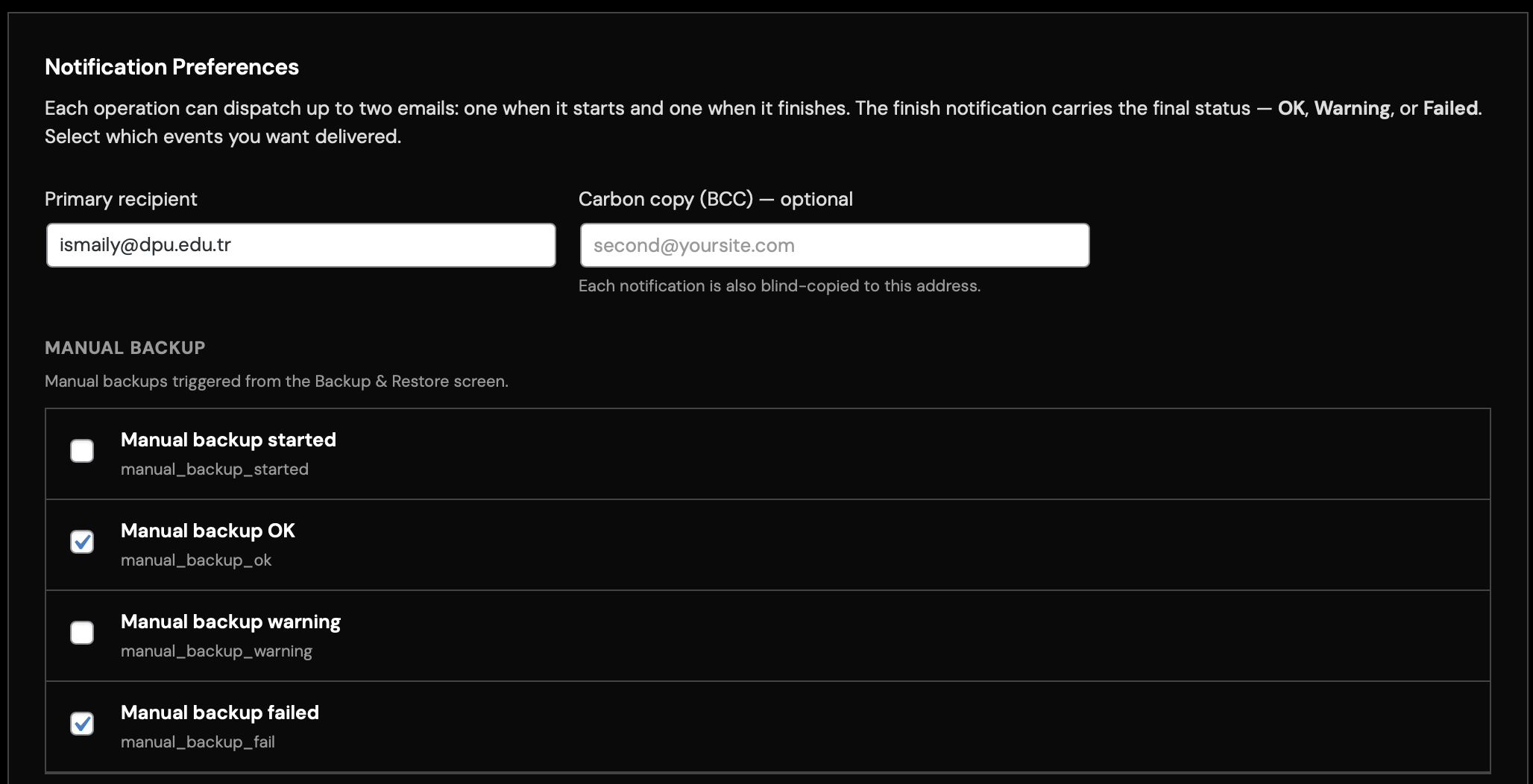
Email notifications for backup, restore and schedule results. Carbon-copy support lets you keep multiple addresses in the loop, with an option to receive alerts on errors only.
- Carbon Copy & FilteringDefine carbon-copy recipients and toggle filters such as “Errors only” under Settings → Notifications.